Knowledge base
Quick shift assignment guide
Created on 15 Apr 2026, Updated 13 Oct 2026 19:15
📋 Quick shift assignment guide for team leads
⏰ Smart timing: Volunteers sign up gradually, then exponentially close to the event. Wait a week or two before the event to assign shifts.
Set up your shifts before proceeding!
If you don't have shifts or approved volunteers, set up as many key shifts as you can before reaching out to volunteers.
Approve volunteer applications
Volunteers need to be approved before they can be assigned, or self-assign themselves to a shift. Do this from the Volunteer applications page.
You can turn on auto-approvals in volunteer settings for the event if desired.
Three easy ways to assign and offer shifts:
Once you have your shifts set-up and approved a few volunteer applications, you can start building your roster
- Send a message to your team - Use the built-in message system, which gives volunteers access to the roster where they can pick their own shifts
- Offer shift - Ask volunteers if they want it (they accept/decline)
- Manual assignment - Put someone directly on a shift (they confirm/decline later)
Offer or manual assignment best practice: For finding candidates, always assign from the shift's page (not volunteer list, unless you're looking to assign a specific person) - Assigning from a shift will show eligible candidates automatically.
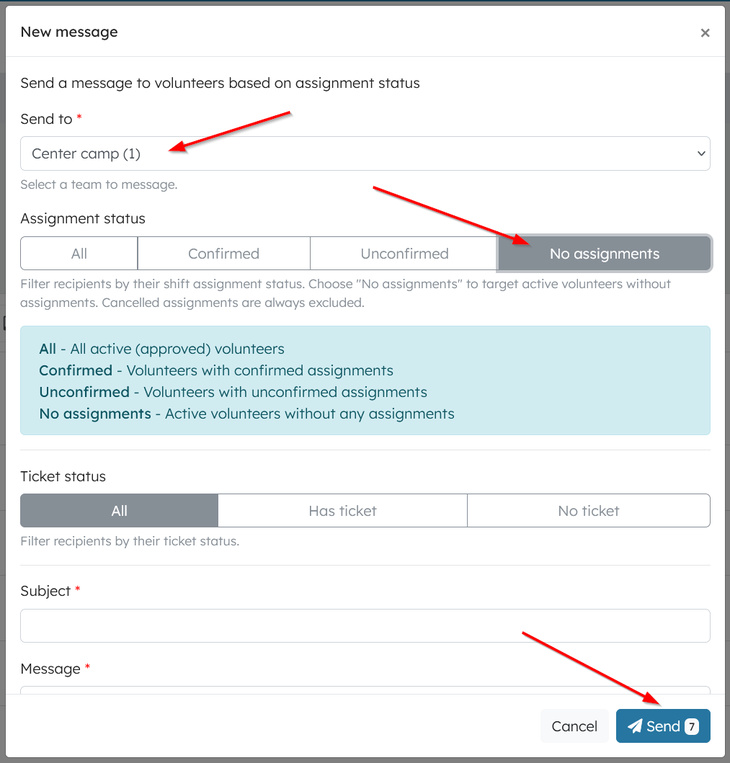
Steps to send a team broadcast message
- Navigate to Volunteers → Messages and click New message.
- Select recipients by choosing the specific team (or All volunteers if permitted).
- Set the assignment status filter to "No assignments" to reach unassigned volunteers only.
- Select the auto-send checkbox if you want new volunteers to receive this message when they register later
- The Send button displays the exact number of recipients.
Offering a shift:
- Must have 2iC role or above
- Go to the Shift listing page
- Click "Offer" on a shift
- You will see a selectable list of eligible candidates
- Volunteers choose accept/decline
- Perfect when you need to fill spots
- The volunteer's team preferences are used for selection. Additionally, volunteers without assignments, with any team preference can be selected
Manual assignment
- Must have supervisor role or above
- Can be assigned from volunteer's view page, shift listing or a shift page
- Click "Assign" on shift → search volunteers → select
- Status goes "Pending"
- Optional: send email notification
- The volunteer's team preferences are used for selection.
Key difference: Manual = "You're on it" | Offer = "Want it?"
When volunteers get emails
- When offered/assigned
- When removed by team lead
- Any shift changes (date/notes/location)
Pro tip: Use shift pages, not volunteer lists. Makes it 10x easier.
Avoiding duplicate shift offer emails
When you offer a shift to a volunteer, the email they receive includes a link to their volunteer dashboard, which shows them every available shift in your team and the other teams they have preferences for. This means you don't need to send a separate offer for every shift — one email is enough for volunteers to see and respond to all the team's shifts. The system automatically suppresses duplicate emails.
The "Pending team notification sent" badge tells you a volunteer has already been contacted, so you can focus on volunteers who haven't.

When to build your roster
During the event ticketing process, volunteers usually sign up gradually, then more rapidly as the event gets closer. In most cases, it's more practical to wait until 1–2 weeks before the event to build your team's roster.
Related articles
This guide walks you through the complete workflow of building and managing your volunteer roster
The Volunteer Management System provides a comprehensive solution for organising, managing, and coordinating volunteers for your events.
Learn how to organise volunteers into teams and roles, and manage team availability for your events.
Learn how to create shift schedules that automatically generate multiple volunteer shifts based on operating hours and shift duration.
Learn how to manage individual volunteer shifts, assign volunteers, and track shift status.